How to Detect if an Evidence has been Tampered
Evidence tampering is a criminal offense involving altering, falsifying, or concealing evidence to interfere with an investigation. VIDIZMO Digital Evidence Management (DEM) provides Tamper Detection functionality to verify evidence integrity.
When evidence is uploaded, a hash is stored in the database. During verification, a new hash is generated and compared to the original. If both hashes match, the evidence is marked as Un-tampered; otherwise, it is marked as Tampered.
For more information, see Understanding Evidence Tamper Detection.
Prerequisites
- Belong to a group with Tamper Verification feature enabled, or have a CAL that grants this permission.
- Ensure the Tamper Verification app is enabled in the portal.
Check Tamper Detection
Run Tamper Detection on a Single Evidence
- In your DEM portal, go to the Homepage.
- Locate the evidence you want to verify.
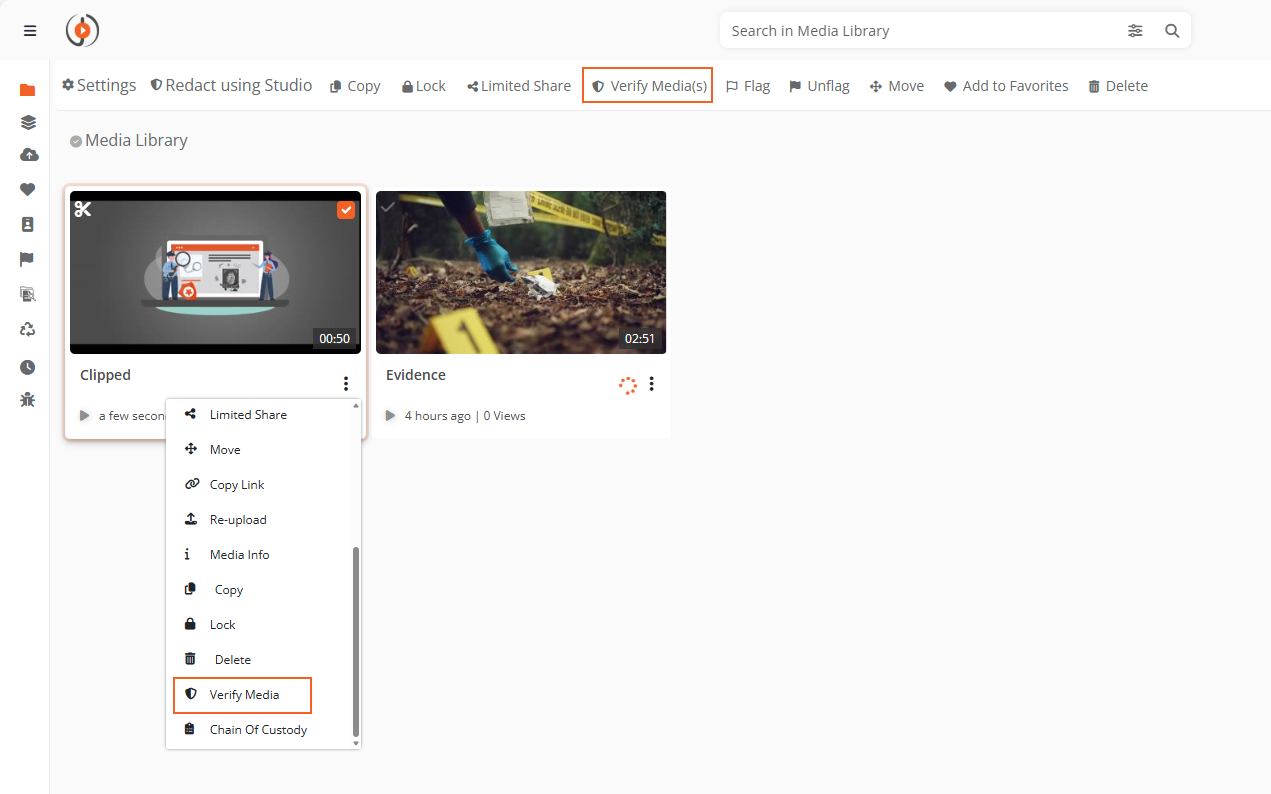
- Select the overflow menu (three dots) on the evidence card.
- Select Verify Evidence to run the workflow.
A notification confirms the Tamper Verification Workflow has been initiated. The workflow checks each evidence rendition, which may take some time.
Tip: To switch from Case view to Evidence view, use the filter dropdown on the Homepage.
After the workflow completes, the tamper status appears on the evidence thumbnail:
- Verified: Evidence has not been tampered with.
- Tampered: Evidence integrity has been compromised.
Select the tamper status indicator to view the Evidence Information screen with detailed verification history.
Run Tamper Detection on Bulk Evidence
- In your DEM portal, go to the Homepage.
- Select multiple evidence items using the checkboxes.
- Select Verify Evidence from the command bar.
Note: On smaller screens, select the overflow menu below the evidence tab to find the Verify Evidence option.
After the bulk workflow completes, each evidence displays its tamper status on its thumbnail.
View Tamper Report
The tamper report provides:
- Timestamp of the last verification run
- Tamper status of each evidence rendition in storage
To view the tamper report:
- In your DEM portal, go to the Homepage.
- Select the tamper status indicator on the evidence.
- In the Evidence Information screen, view the Last Tamper Detection Check timestamp.
- In the File Name column, select the + icon to expand renditions.
- Review the Tamper Status column for each rendition.
Read Next
- Understanding Evidence Tamper Detection
- How to Enable Evidence Tamper Detection Functionality in DEM
- How to Inspect an Evidence